

MathMatize Brightspace Instructor Setup Guide
Instructor guide for using MathMatize with Brightspace
Brightspace/MathMatize Instructor Setup Instructions
Add MathMatize to your Brightspace classroom
To add MathMatize as an “external tool” to your Brightspace classroom, you have two options for how and where to insert the link.
- As an activity in the course's content tab.
- In the course navigation bar.
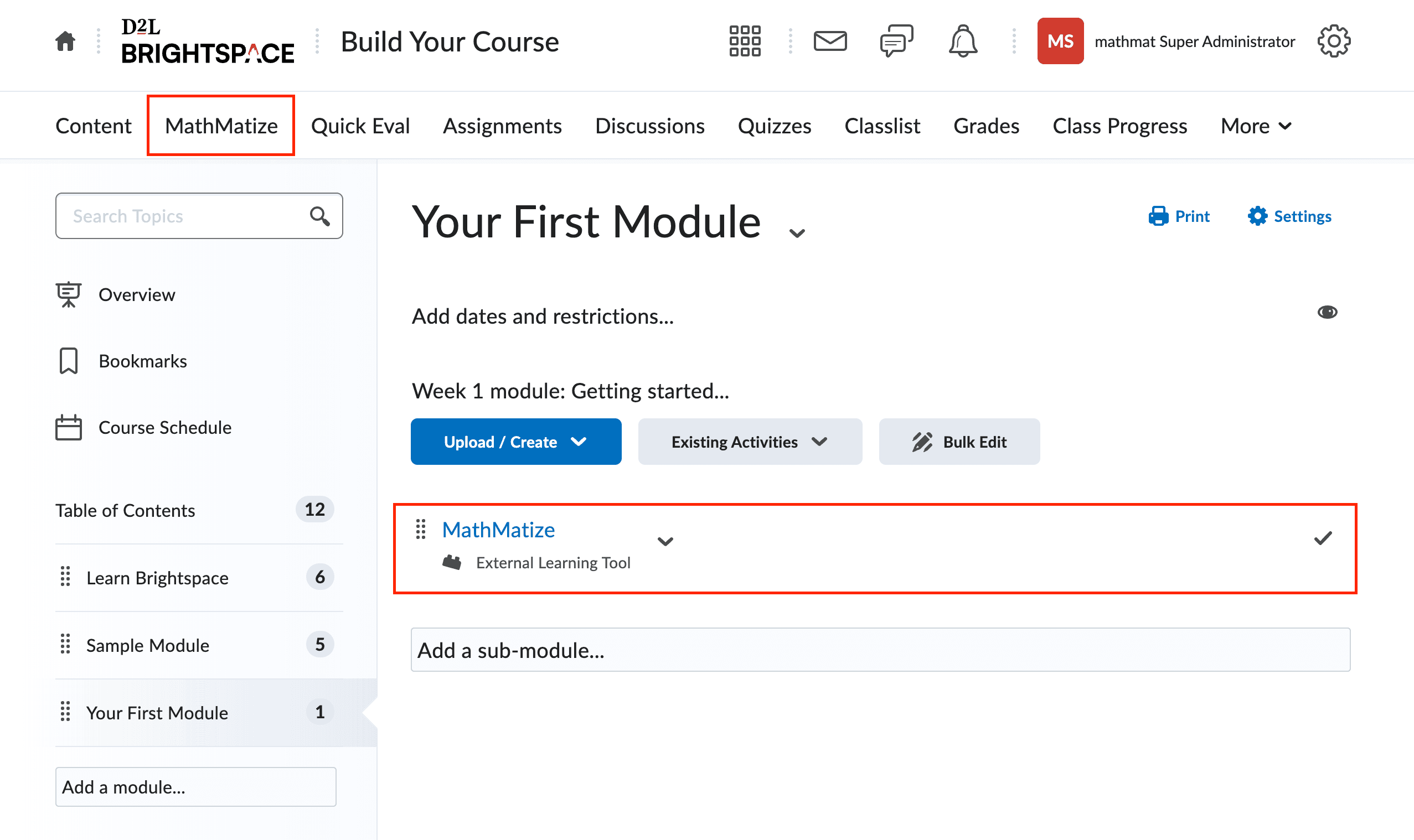
Add Link to Course Content
- Select the Content tab
- Select Existing Activities > External Learning Tools
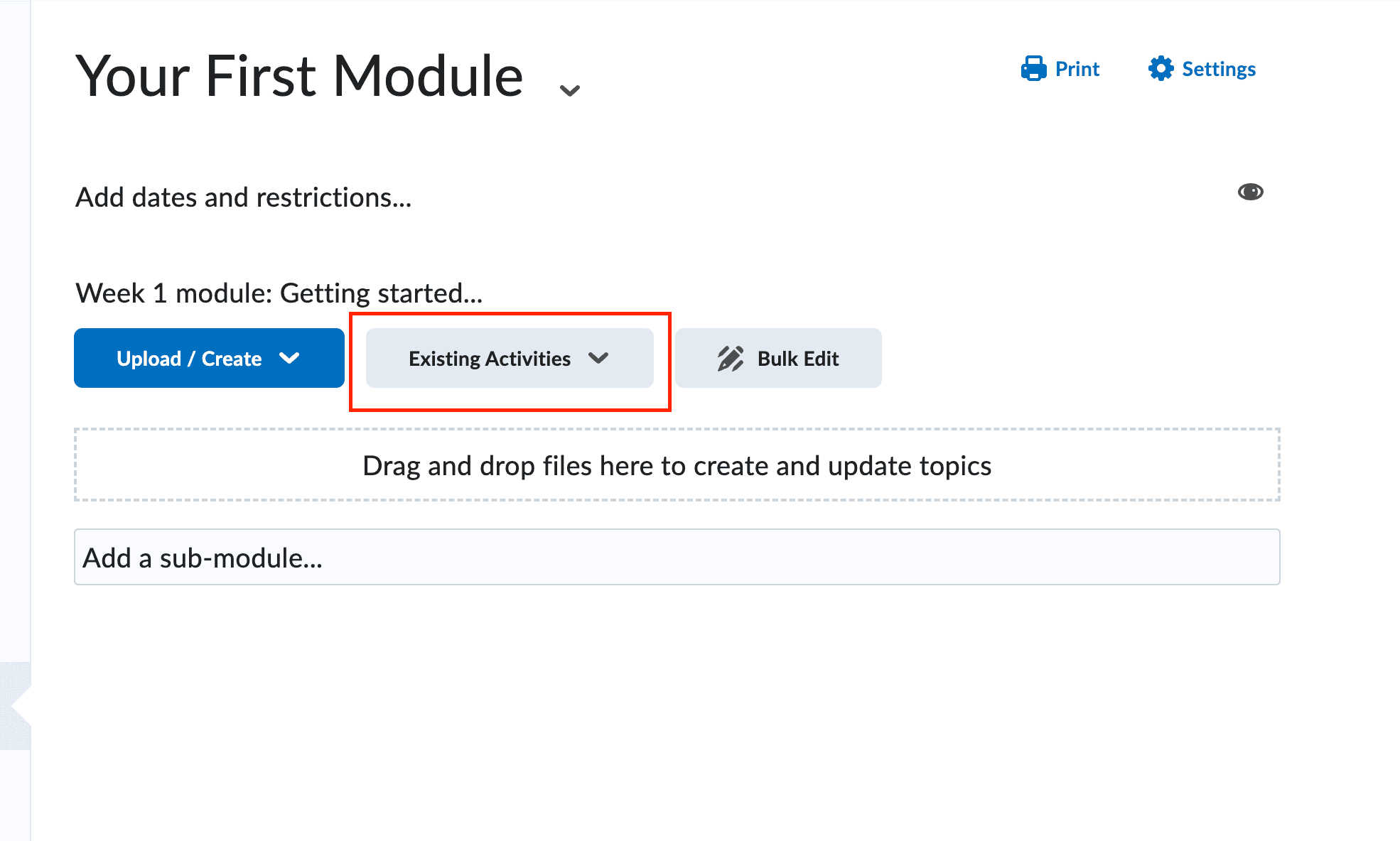
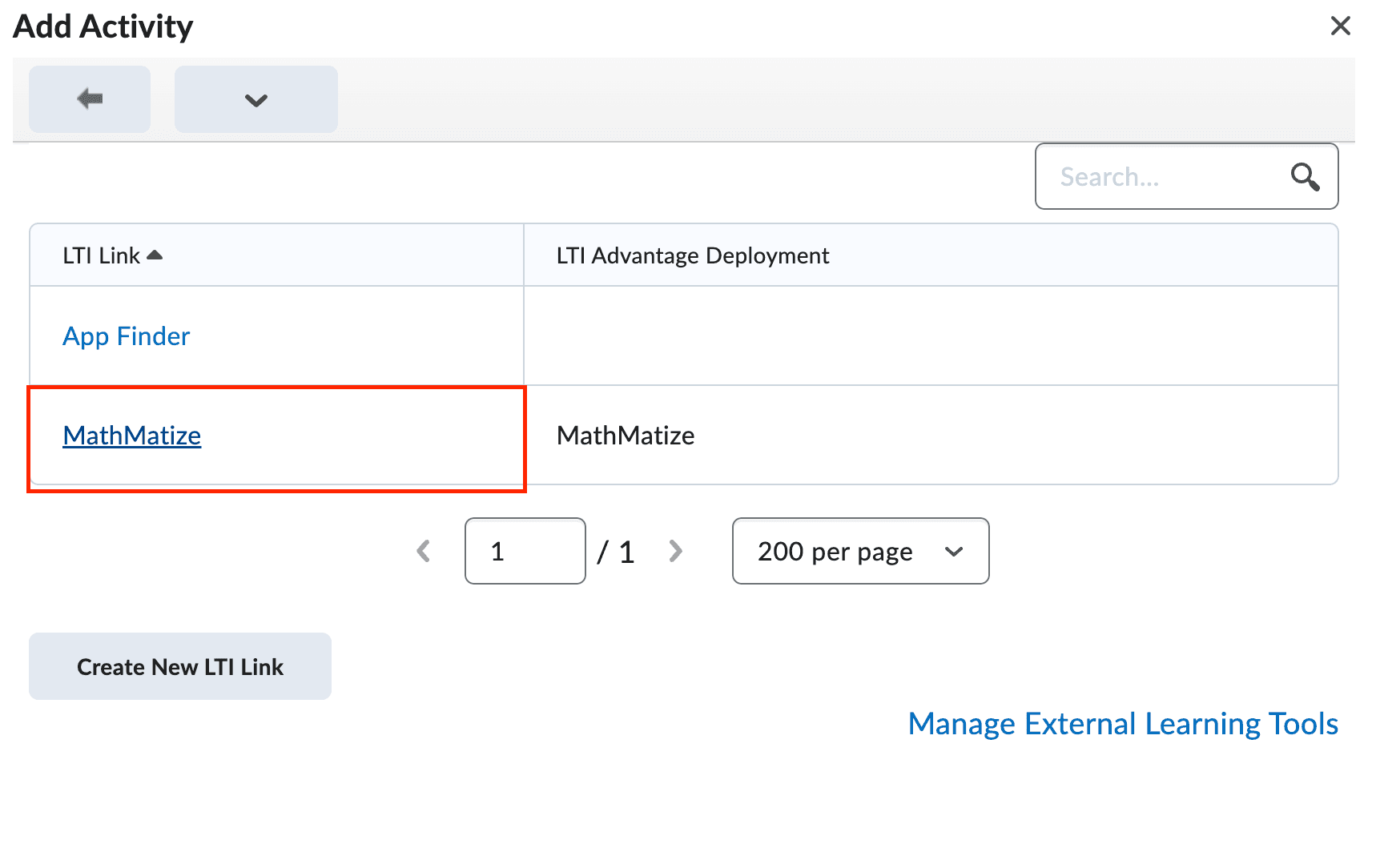
- Select MathMatize from the list of available tools if available. If you can’t find MathMatize, please contact your Brightspace administrator to ensure a link has been created.
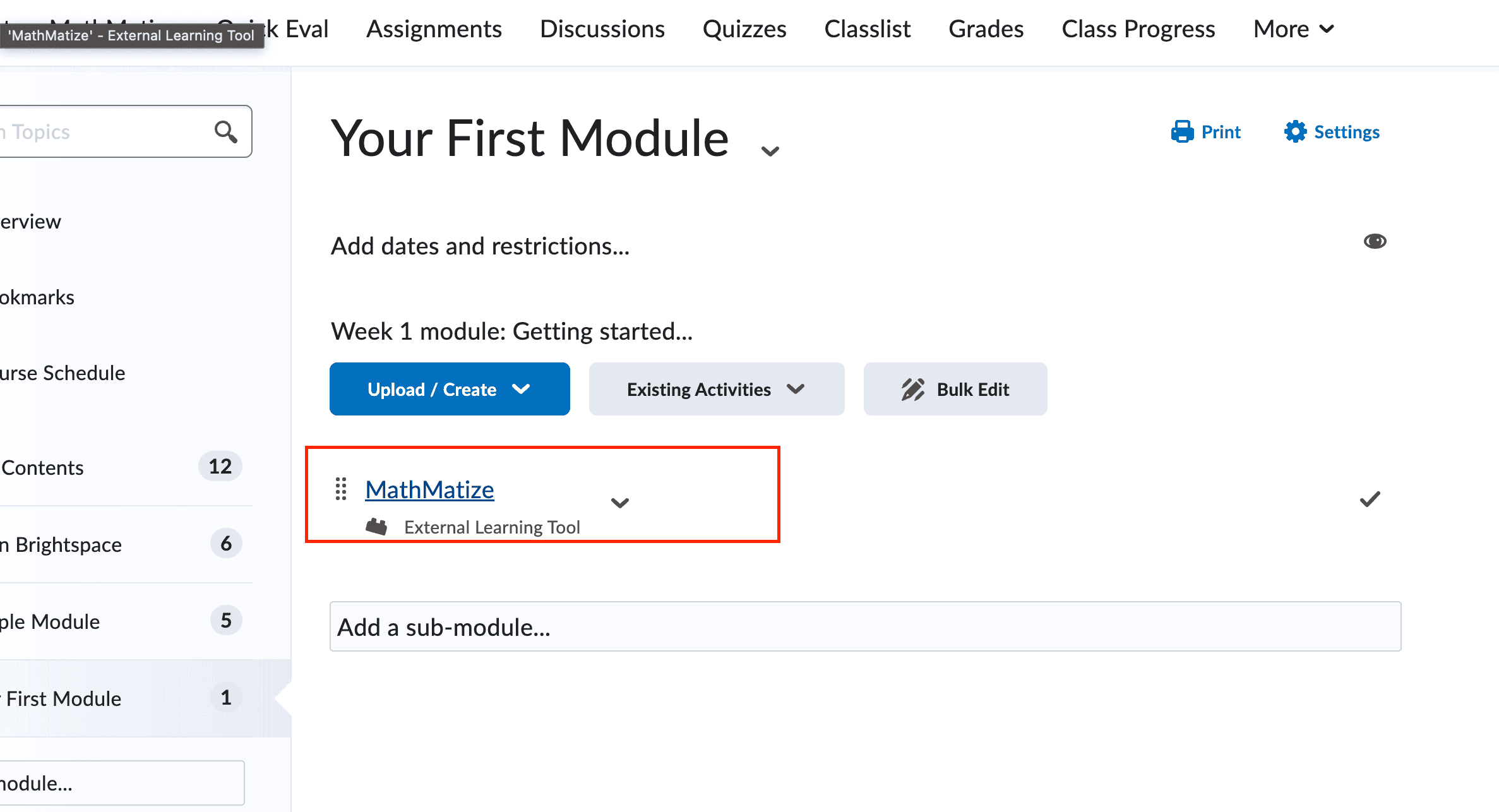
- At this point, you should now see the MathMatize tool inside your Content
Add Link to Course Navbar
Depending on your Brightspace configuration, you may or may not have the ability to add links to the course navigation. If you do have this ability, follow these steps:
- Open the course admin
- Select Navigation & Themes
- Select Add Links
- Assuming your system administrators have already set up a MathMatize link, you should be able to search “MathMatize” and select it from the list of available links
- If you can’t find MathMatize in the list of available links, you’ll either need to contact your Brightspace administrator or add the link yourself, by clicking “create custom link”
- Name: “MathMatize”
- Under “URL”, select “insert quick link” > “external learning tools” > “MathMatize”
- Behaviour: “Open in new tab”
- Select the newly created “MathMatize” link and position it as desired in your course navigation.
Connect Brightspace and MathMatize classrooms
- At this point, you can click the MathMatize course navigation link or content link. This will open MathMatize in a new browser tab.
- If this is the first time you’ve connected to MathMatize from Brightspace, you’ll be prompted to either link your Brightspace account to an existing MathMatize account or simply create a new account.
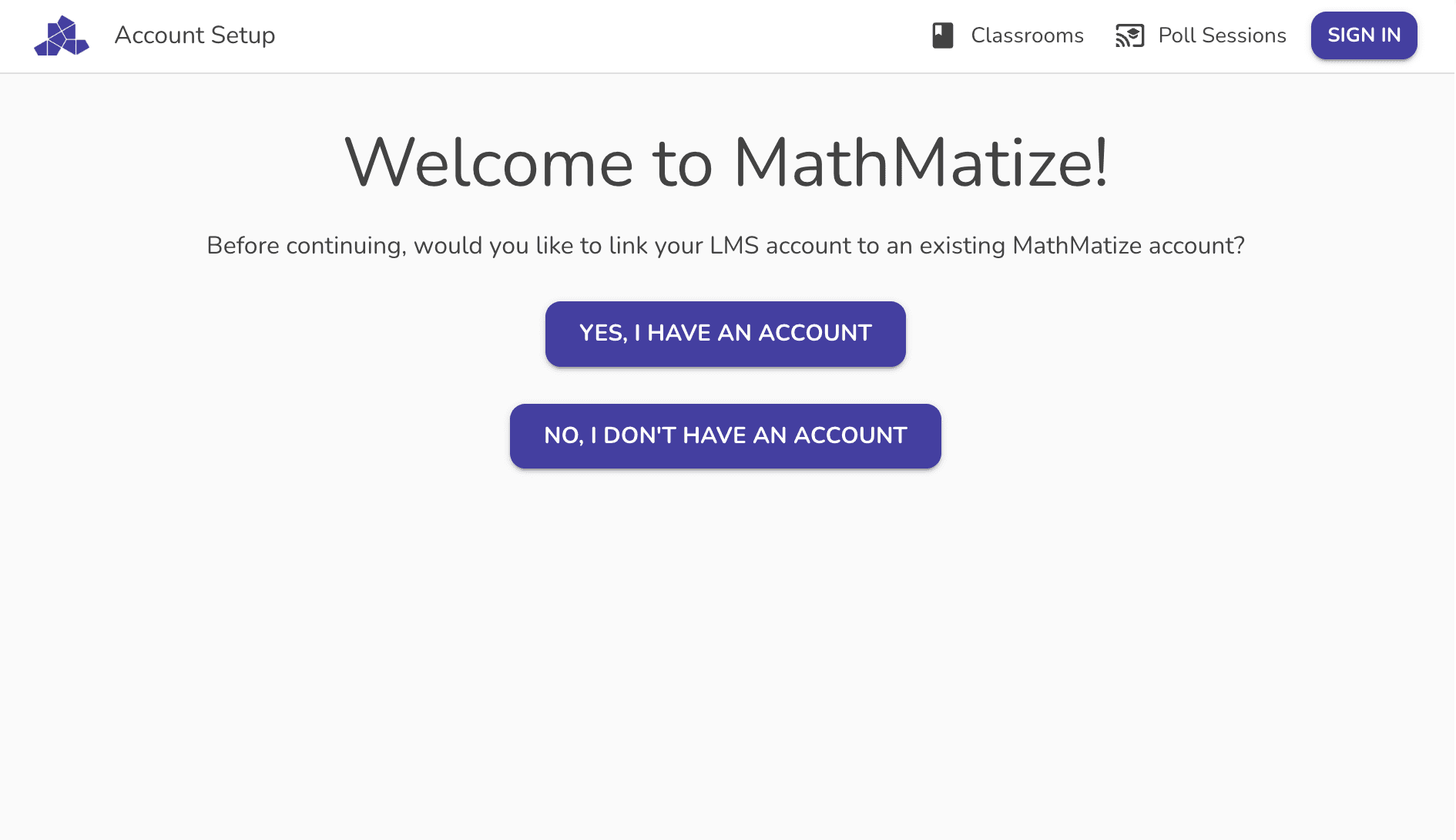
- Once your account has been linked, you’ll be prompted to either create a new MathMatize classroom or link the current Brightspace classroom to an existing MathMatize classroom if you have one.
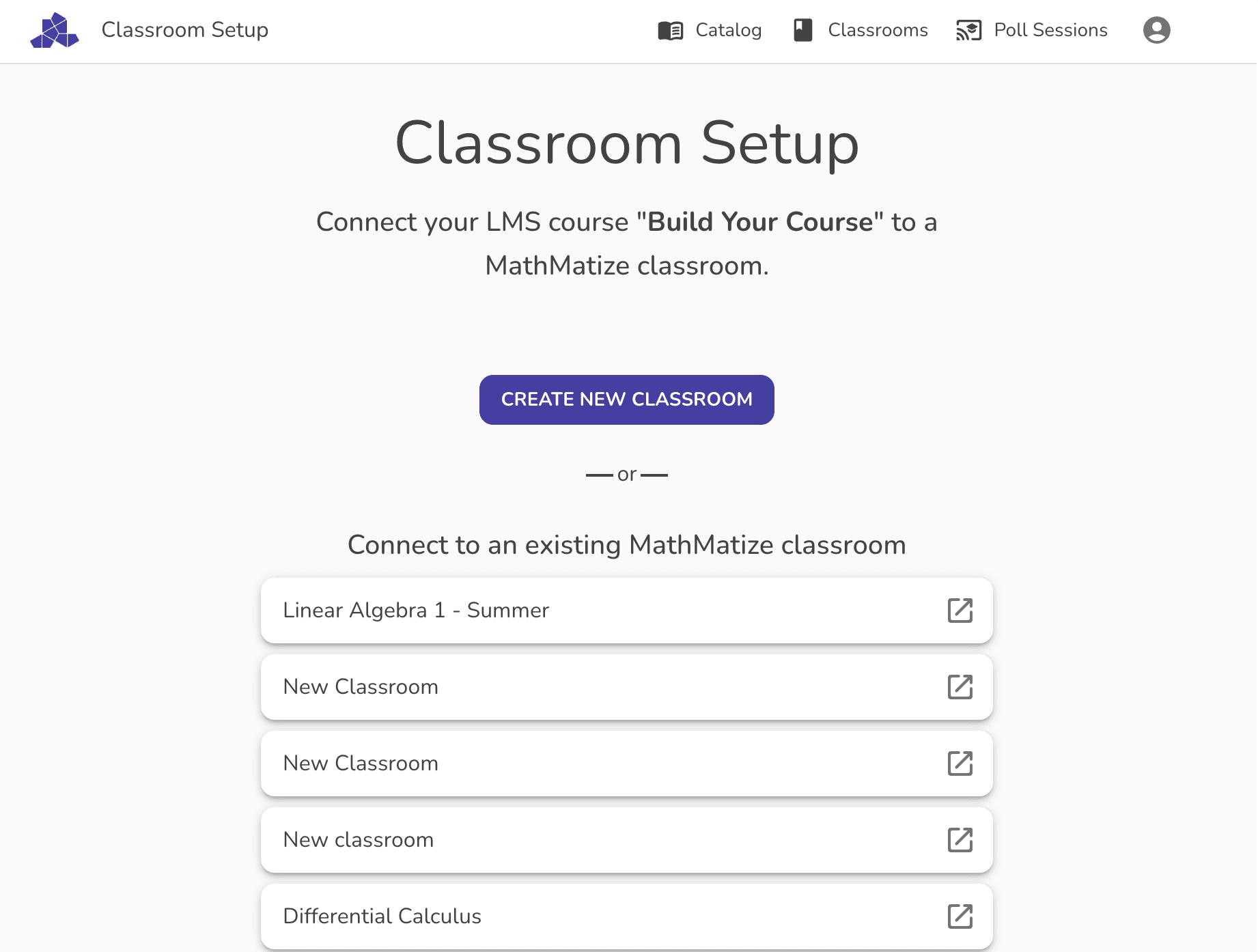
- Once you’ve linked a classroom, you’ll be taken to the instructor view of the classroom.
- Congratulations! Your Brightspace classroom is now connected to MathMatize. Your students and co-instructors will now be able to link directly to the classroom.
FAQ
I don’t see the MathMatize tool as an option in "external tools".
Generally, an administrator at your school needs to make the tool available. If you'd like MathMatize to be available, contact us at questions@mathmatize.com and we'll help with the administrative setup process.
I connected the wrong MathMatize classroom. What do I do?
Visit the MathMatize classroom you connected to and click the Disconnect button in the classroom settings under "LTI Integration". You can then connect the correct classroom.
How do students join my classroom?
They click the “external tool” link/assignment you added in your Brightspace course. We have a guide for students here.
How do co-instructors join your MathMatize classroom?
They click the “external tool” link/assignment in the LMS classroom. We have a guide for adding co-instructors.
How do grades and assignments sync back to the LMS?
When you “sync grades” in MathMatize for a given task, an assignment will be added to your LMS classroom with the same name you’ve given the assignment in MathMatize. We will only add an assignment if one hasn’t already been created. Any grades will show up in the Brightspace grade book. Grades should only be synced once the MathMatize task is complete. We have a guide for syncing grades here.
I’m having trouble syncing grades.
Make sure the task is complete in MathMatize before syncing grades. If you’re still having trouble, contact questions@mathmatize.com.
Do I need to create an assignment or “external tool” link in the LMS classroom for each assignment in MathMatize?
No, you do not need to create an assignment/"external tool" link in the LMS for each MathMatize task. Only a single external tool link to the MathMatize classroom is needed. When you sync grades in MathMatize, an assignment will automatically be created in your LMS classroom.
I’m running into issues… what do I do?
Please contact questions@mathmatize.com. We’re happy to help troubleshoot.